
APK Download Guide 2026
Want to download an Android app using an APK file? An APK file is the package format used to distribute and install applications on Android devices. It can be useful when an app is unavailable in your region, when you need a particular version, or when you want to install an app from its developer’s official website.
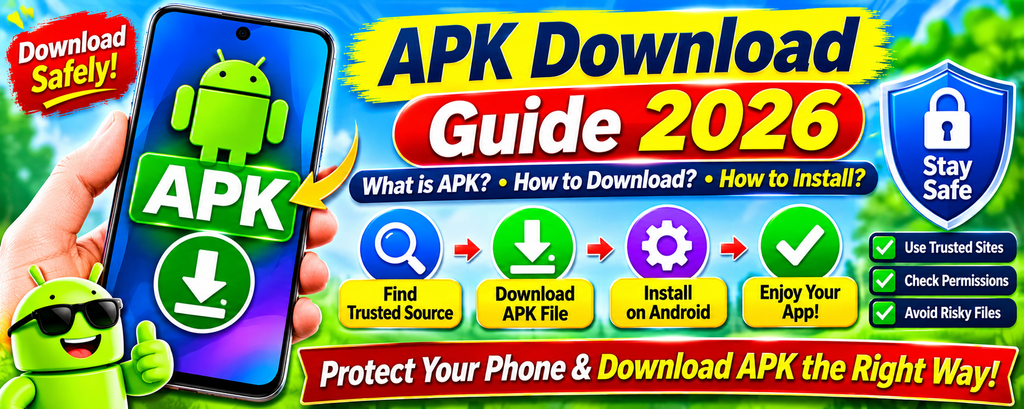
However, downloading APK files from unknown sources can put your device and personal information at risk. In this complete APK Download Guide 2026, we will explain what APK files are, how to download and install them, and how to protect your Android phone.
📱 What Is an APK File?
APK stands for Android Package Kit. It is the file format Android uses to package applications for installation.
An APK file contains the components an app needs to run, such as its code, resources, and other required files. Think of it as an installation package for an Android application.
APK files are commonly used when installing apps outside the Google Play Store, although some apps use additional installation formats or multiple packages.
⭐ Why Do People Download APK Files?
There are several reasons Android users look for APK downloads:
- Regional availability: An app may not appear in the Play Store in your country.
- Version selection: Some users need a particular compatible version.
- Developer websites: Developers may provide APK files directly.
- App testing: Developers and testers may install APK files to check applications.
- Device compatibility: An older version may work better on certain devices.
Remember that downloading an APK does not guarantee that it will work on every Android phone.
📥 How to Download an APK File
Follow these steps to download an APK file more safely.
Step 1: Find the Official App Source
First, search for the app’s official website or developer page. Check the developer’s name and make sure the website address is correct.
Step 2: Choose the Correct Version
Check the app version and Android compatibility information. Make sure the APK is intended for your device.
Step 3: Download the APK
Tap the official download link and wait for the file to finish downloading. You can usually find downloaded files in your phone’s Downloads folder.
Step 4: Check the File
Before opening the APK, confirm that it came from a trustworthy source. Avoid suspicious pop-ups, misleading download buttons, and files that request unusual permissions.
⚙️ How to Install an APK on Android
After downloading the file, follow these general instructions:
- Open the Files or Downloads app.
- Find the APK file you downloaded.
- Tap the file to start installation.
- If Android asks for permission, review the option to allow installation from that source.
- Allow it only if you trust the source and understand the risk.
- Return to the installer and tap Install.
- Wait for installation to finish.
- Open the app and check that it works correctly.
Important: Android settings can vary depending on your phone brand and operating-system version. You may need to open Settings and search for “Install unknown apps” to find the relevant permission.
🔐 Important Safety Tips Before Installing APKs
Downloading APK files requires extra care. Follow these tips to reduce security risks.
1. Download from Trusted Sources
Prefer Google Play or the app developer’s official website. Avoid unfamiliar websites that offer suspicious download links.
2. Check App Permissions
An app should request permissions that make sense for its features. Be cautious if a simple game requests access to contacts, messages, or other unrelated information.
3. Keep Google Play Protect Enabled
Google Play Protect can help check apps for harmful behavior. Keep it enabled and pay attention to security warnings.
4. Avoid Modified or Cracked APKs
Modified APKs may contain unwanted code, malware, or hidden tracking. They may also violate the app developer’s terms or copyright.
5. Keep Your Android Phone Updated
Install Android security updates and app updates when available. Updates can fix vulnerabilities and improve device protection.
⚠️ Common APK Installation Problems and Solutions
| Problem | Possible Solution |
|---|---|
| App not installed | Check device compatibility and available storage |
| Parse error | The file may be incomplete or incompatible |
| Download failed | Check your internet connection |
| Installation blocked | Review Android’s security warning |
| App keeps crashing | Check for an update or compatible version |
Never disable important security protections just to force an APK installation.
🏆 Final Words
Downloading APK files can give Android users another way to install applications, but safety should always come first. Choose trusted sources, check compatibility, review permissions, and pay attention to Android security warnings.
We hope this APK Download Guide 2026 helps you understand how APK files work and how to install them more safely.
Keep visiting APK14X.COM for Android app guides, helpful tutorials, gaming updates, and the latest mobile technology tips!