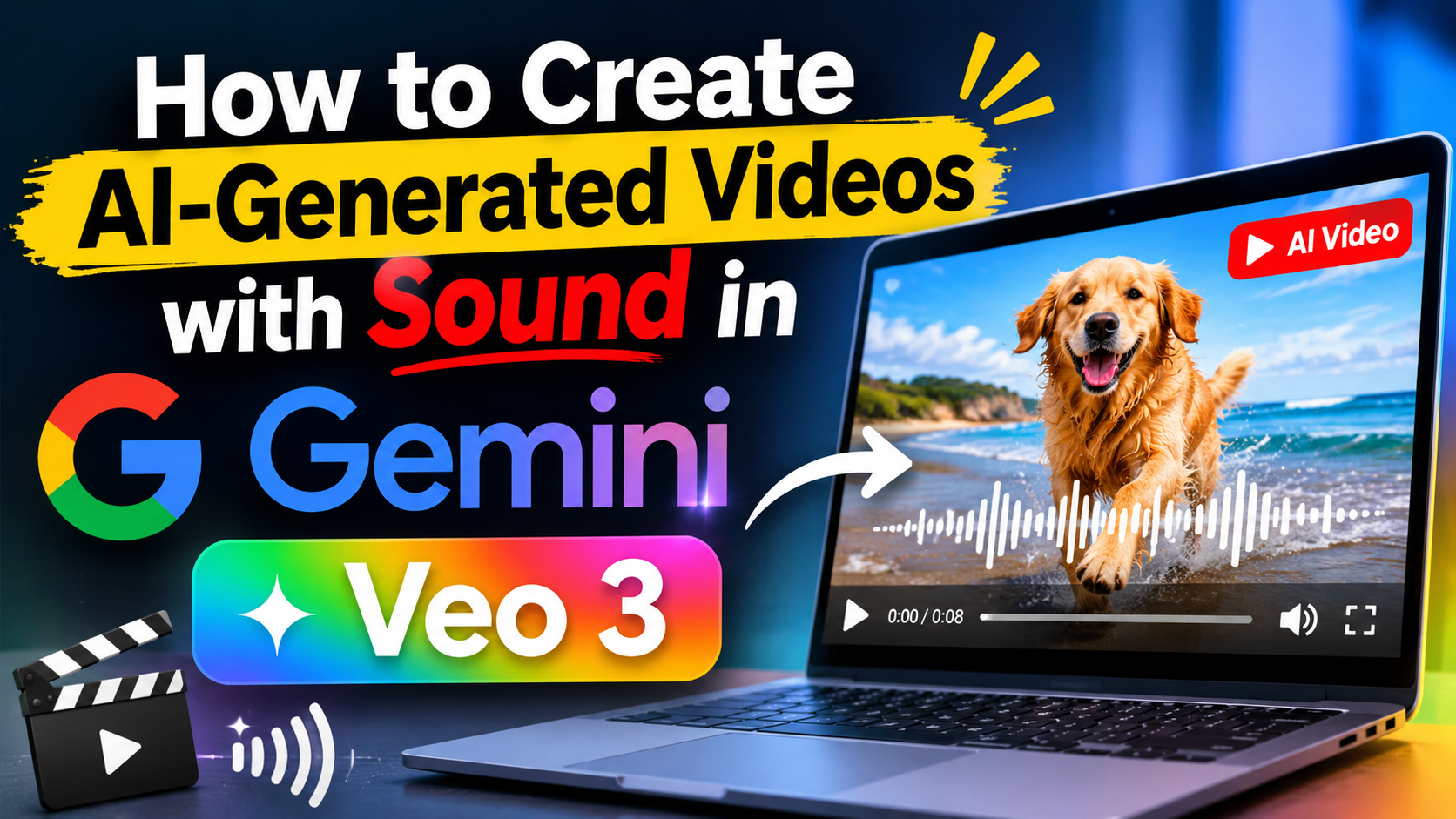
How to Create AI Videos with Sound in Gemini Veo 3
AI video tools are revolutionizing video editing. Now all that is needed to produce high-quality, pro-looking videos is imagination and creativity. Thanks to Google Gemini and Veo AI Video, all that it takes is writing a video description. Then, the tools will add voice and music.
Beginner creators, YouTubers, bloggers, and even digital marketers can harness the power of AI video generation to make video creation even more efficient.
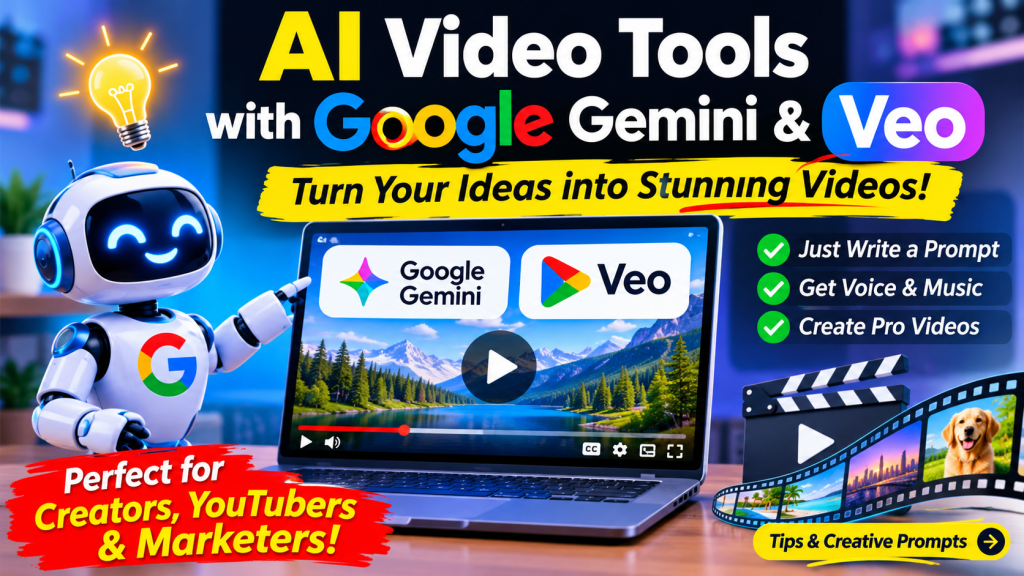
In this article, APK14X.com guides beginners to advanced users on creating AI videos using Google’s video generation tools with tips and creative prompts on getting better results.
What Is Google Gemini Veo 3?
Google’s latest text-to-video AI generation model, Veo 3, can take text descriptions to generate high-quality, high-definition videos with generated synchronized video audio. Veo 3 is even more impressive with native audio generation.
In addition to describing video, audio generation prompts allow for describing video audio like music, wind, or the sound of birds, making Veo 3 very powerful and time-efficient.
An example is describing a beautiful, flowery waterfall, and let Veo 3 generate it for you with beautiful, soothing audio.
As a further step to excellence, Google DeepMind introduced Veo 3.1, which offers enhanced creative audio-video controls and overall AI video quality and control.
Here’s How To Start Generating Videos With Sound Using Gemini
Start producing stunning videos today with a few easy steps.
Step 1: Sign in to your account on the Google Gemini website or app.
Check if your account has video generation features available. Depending on your account, the region, and the subscription you have, there may be different limitations, requirements, and models you can use.
Step 2: Choose the Video Generation Option in Gemini
See if you can create videos in your account. The option to generate videos varies from person to person. It depends on your account, your location, and what subscription you have.
Step 2: Locate the video generator and see what model is currently in use.
Google releases regular updates, so what’s there one day, might change the next. It might be possible to generate videos using Omni instead of the original Veo 3 model.
Step 3: Write an Effective AI Video Prompt
The effectiveness of AI video generation is primarily driven by how well you describe your idea. Think about the subject of your video, the location, the camera, and the overall video structure. Consider these aspects:
For example:
Create a short, high-quality, 10-15 second video showing a golden retriever running through a beautifully green garden during the sunset. The retriever should have very realistic movements, and the warm, golden light of the sunset should provide the backdrop to your video. You should also include audio of birds chirping in the wind with the sound of leaves and footsteps.
Be detailed and provide your AI assistant with the context of your ideas, and let it know what your vision for your final product looks like. The more you describe, the better your final result will be.
Step 4: Incorporate Lifelike Audio and Speech
To generate video with sound, provide prompts with specific audio descriptions.
Request human voices that sound authentic, background music, animal sounds, environmental sounds, and realistic audio effects.
For example:
A man speaks to the camera in a modern city: Welcome to my lovely city. Include background sounds of street traffic, footsteps, faraway talk, and some soft music.
Include audio and scene instructions.
Step 5: Generate Your AI Video
Once you’ve entered your prompt, hit the Generate button. Gemini will read your prompt and generate your video.
Wait a few minutes. Generating a video might take longer, depending on the server’s current workload and the model you chose. It’s best to begin with a few short, uncomplicated clips to understand the technology, and then move on to more complex video concepts.
Step 6: View and Download
Review the generated video. Ensure the video quality is good and that characters and dialogue and background audio align well.
If it’s perfect, then proceed to the download option and use the file to post to YouTube, Instagram Reels, and others.
Best Prompts for Gemini Veo 3 AI Video
Here are some inventive video prompt suggestions.
1. Beautiful Waterfall Video
Design a beautiful, photorealistic cinematic video featuring a stunning waterfall. Set the scene against lush, green mountains and include flowing water, some birds, and sunlight that shines gently while a slight wind blows through the trees. Also add some high-quality nature audio like splashing water with relaxing music, to go along with it.
2. Product Video
Produce an elegant advertisement to promote a new, high-tech smartphone on an aesthetically pleasing desk. Utilize quality lighting and a smooth pan for camera work and ensure a high quality of the scene. Make it classy by adding background music with a soft, electronic beat.
3. Busy City at Night
Capture a beautiful and atmospheric shot of a big city at night with vibrant neon lights and some people strolling around. Show vehicles driving around the bustling streets as well. Make the sound design just as high quality by capturing a distant sound of some conversations and city sounds along with relaxing background music.
Tips for Better AI Video Generation
There are several things to keep in mind to get the results you want with AI video generation. For example, include all the details you can in your prompt, including descriptions of the scene, what you want the characters in your scene to say, how you want them to behave, what you want the scene to look like, and more.
Don’t add too much to one scene because you might run the risk of generating a disjointed video that is confusing. The prompt should be focused on one scene.
It is always better to preview generated videos. AI video generators can make mistakes. You want to make sure your video is perfect before publishing it.
Advantages of Using Gemini to Create Videos
There are a few advantages of using Gemini for AI video creation for all kinds of creators. AI video generation lets you try new things when you are first learning about the world of content creation, while at the same time allowing you to create promotional content.
Video generation tools let you make educational and entertainment videos. AI video generators can even help you make videos for ads or even videos to tell stories for all kinds of social media content.
The main benefit of Gemini and AI video creation in general is the ability to generate native audio, which cuts out the middle step of generating sound effects and voice audio separately.
Conclusion
Google’s Gemini and Veo AI technology have made creating video content accessible to all users. Now, all it takes is having some detailed prompts and the correct generation settings to create high-quality videos for content creators without the cost of expensive video production equipment.
You can start creating AI videos with a simple prompt and change the video styles until you get the result that you are satisfied with.
Keep checking back for new posts on APK14X.com about the latest AI tools and the most creative ways you can use AI.